Review
Messaging apps have changed everyone's life forever. Since the arrival of WhatsApp or Telegram in our lives, everything has taken a considerable turn. In addition to these two great giants there are also other applications of this type, increasingly popular, and among which we find, for example, Google Hangouts.
This messaging application allows us to send text messages to our contacts, talk to them via video call and even carry out group conversations. Its use is not as widespread as that of WhatsApp or Telegram, but in the business world it has a great weight thanks to the enormous features it offers us and the compatibility with other Google products.
Like many others, its download is completely free and you can download it both from Google Play for Android devices and for iOS devices from the App Store. Its benefits include compatibility and synchronization with all types of devices. It also offers us a web version that, without a doubt, any user who spends many hours in front of their computer will be able to make the most of it.
In recent times, Google has insisted on decoupling Hangouts from other products, especially to gain presence in a really difficult market and where there are hundreds of competitors of all kinds.
Google Hangouts has three main features that you can use to send text messages using photos as attachments, just like any other text messaging application. You can use it for video chat, which is probably the most useful option, you could have ten people in a video chat room, it is ideal for holding small classrooms or meetings and you can also make phone calls so you can use someone's phone number and make international calls in different countries. Although you only chat by video, it will be free and you can turn off the camera and only speak by voice call that way there applications for Google Hangouts.
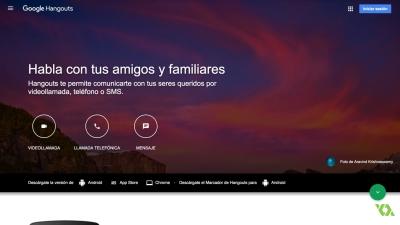
If you want to use it from your computer, go to www.hangouts.google.com and be sure to log in to your Google or Gmail account. If you do not have it, you must do it in the Google account. On the main screen you can see the buttons for video call, phone call and message. Suppose you want to send a message if you press the button, a new bar will appear in the left sidebar and you can enter the name, email or phone number to start a message. You can also start with a group if you want to add multiple people, but you can always add people after inviting one person. If the person is no longer in Hangout, you can send them an invitation to join Hangouts. If they do not appear in Hangouts it means that they have never used the application before. This will launch the box in the right sidebar where you can start chatting at the bottom.
If you press the video call, whis will start a video call but it will be different from the previous chat call. You will still have to start a conversation and invite someone or send them a URL. The person will have to agree to join the video chat. You can turn off your camera, you can mute yourself, you can send messages and share the screen too. This can also be converted to Group Hangout. That is the main thing that people use to have up to ten people in the world. The last option is to make a phone call and this will have to create a new conversation again. When you call a cell phone in the US, this will be free for you and will be displayed in the upper right corner of the call bar, but some other international calls may charge you a little money. It could mute again, you could press some of the settings to change your microphone.
If you want to use it via your mobile device, it is quite similar with a few slight differences due to the screen size. Of course, you can join a meeting when someone sends you a code, for example from a desktop computer, the code will be something like meet.google.com clip this code. This code will come from the URL of the website where you could meet there. Other different functions that you will be able to access on your mobile phone that can be useful like closed captions: it will basically add captions to what you are saying and you can also change the camera to the front camera.